
What an OmniHuman prompt controls
OmniHuman starts with a reference image and an audio track. The image establishes the visible character and scene; the audio drives speech or singing. An optional prompt directs the performance: how the subject moves, how emotion develops, what the camera does and how the surroundings respond.
OmniHuman supports audio-related actions, expressive dialogue, moving characters, camera direction, group scenes and stylized subjects. You can also leave the prompt empty to see how the model interprets the audio on its own.
- Film and short-form storytelling: guide a character through dialogue, a reaction and a small physical action.
- Fantasy vlogs: combine a selfie-style performance with an imaginative background event.
- Music videos: describe the singer’s delivery, body movement and camera rhythm.
- Creative avatars: animate illustrated characters, animals or pixel-art subjects with clear performance instructions.
A practical prompt formula
Write a short sequence of events in natural language. Describe movement and changes instead of repeating clothing, accessories or other static details that the reference image already supplies.
Camera direction + emotion + speaking or singing + specific actions + optional background activity
Make the speaking state explicit. “The presenter speaks” or “the performer sings” gives the action a clear relationship to the audio. Use concrete instructions, keep them consistent and favor positive descriptions over a long list of things to avoid.
A reusable template
An example to adapt
Adapt this template to the subject, actions and audio in your own scene.
Seven prompt techniques, with examples
Each example below pairs a prompt with its matching input image, audio and output video.
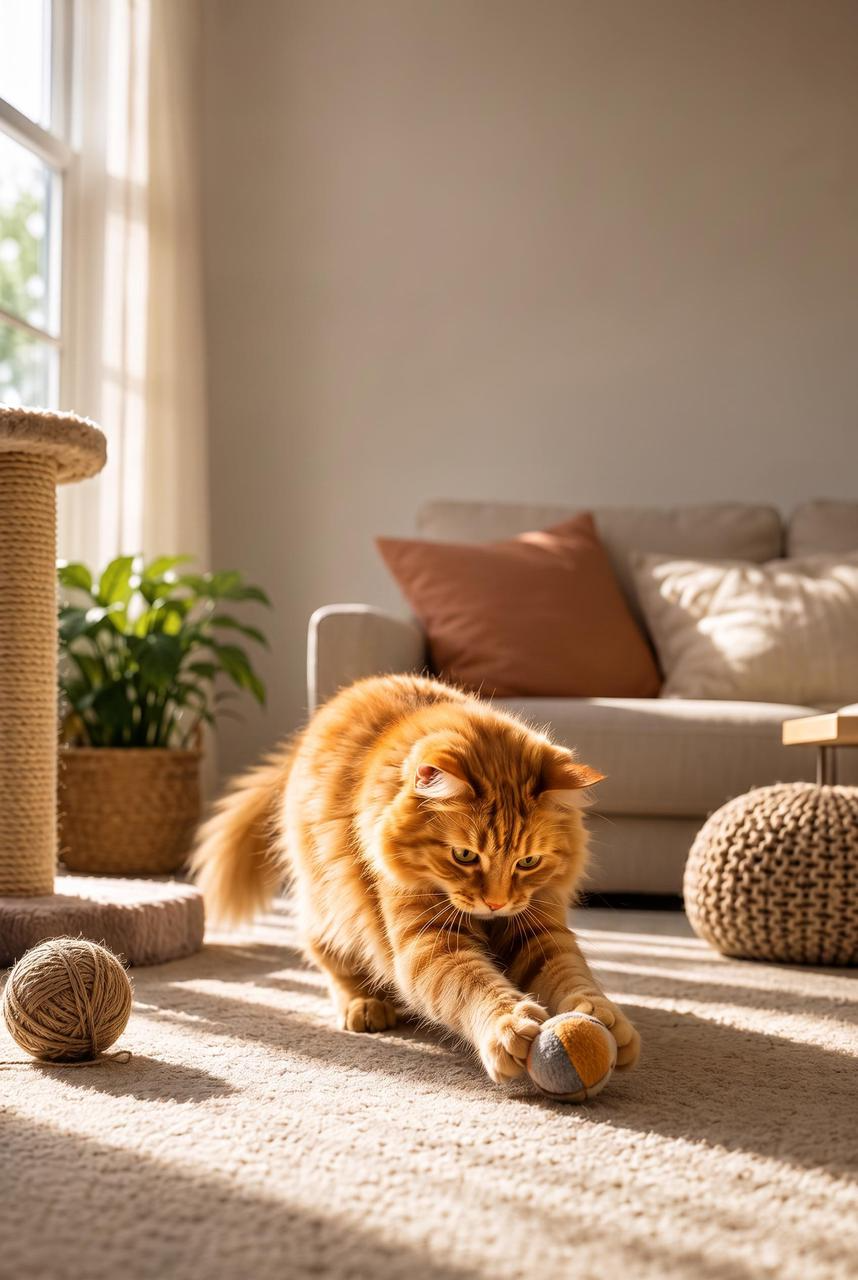
Sequence actions clearly
Write the action sequence in the order it should happen. Use first, then and finally to connect a few achievable beats, and explicitly say when the character speaks or sings.
Cozy photorealistic close-medium shot, very slow push-in. Keep the fluffy orange long-haired cat, the orange-grey ball, the beige carpet, tangled yarn, sisal scratching post, potted plant and light-grey sofa unchanged. The cat pats the ball with both front paws, ears flick, tail sways, then looks up toward the camera and speaks the line with gentle anthropomorphic mouth movement and expressive blinking eyes, playful and slightly smug. Soft natural window light, drifting dust motes, shallow depth of field, warm homey grade. Negative prompt: creepy human mouth, stiff whiskers, changed background, flicker.
Input image and audio
Coordinate movement with speech
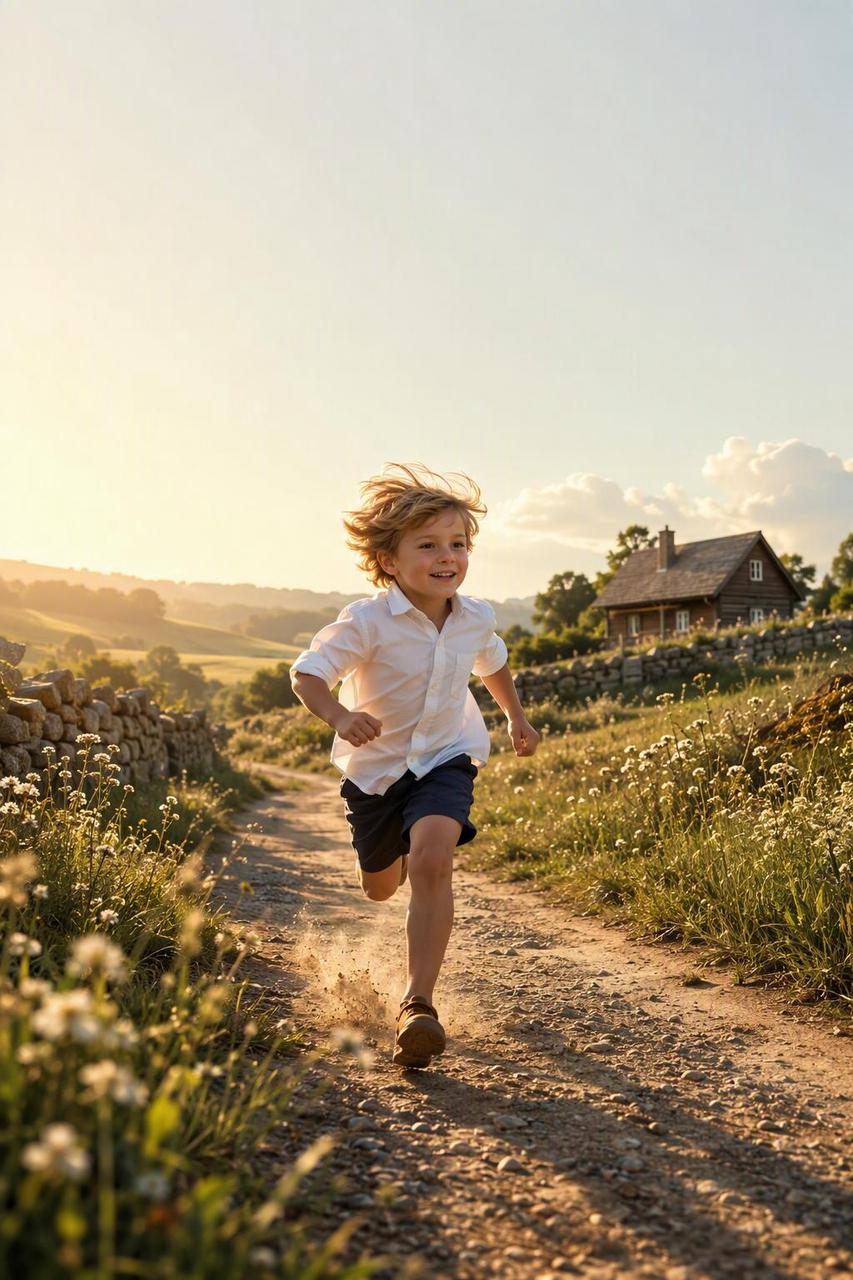
Connect the delivery to the physical action. Say whether the person speaks before, during or after the movement. In this example, the character runs toward the camera, then laughs and calls out mid-stride.
Bright cinematic tracking shot, camera moves backward following her run. Keep the young light-blonde girl, her white shirt and dark shorts, the sunlit dirt country road, white wildflowers, low stone wall, wooden houses and green hills unchanged. She runs joyfully toward the camera, kicking up light dust, hair bouncing, then laughs and calls out the line mid-stride with natural breathless lip-sync and bright sparkling eyes. Warm golden sunlight, lens flare, vibrant summer grade, shallow depth of field. Negative prompt: slow motion, stiff running, face distortion, changed outfit, camera shake.
Input image and audio
Direct the camera and its destination
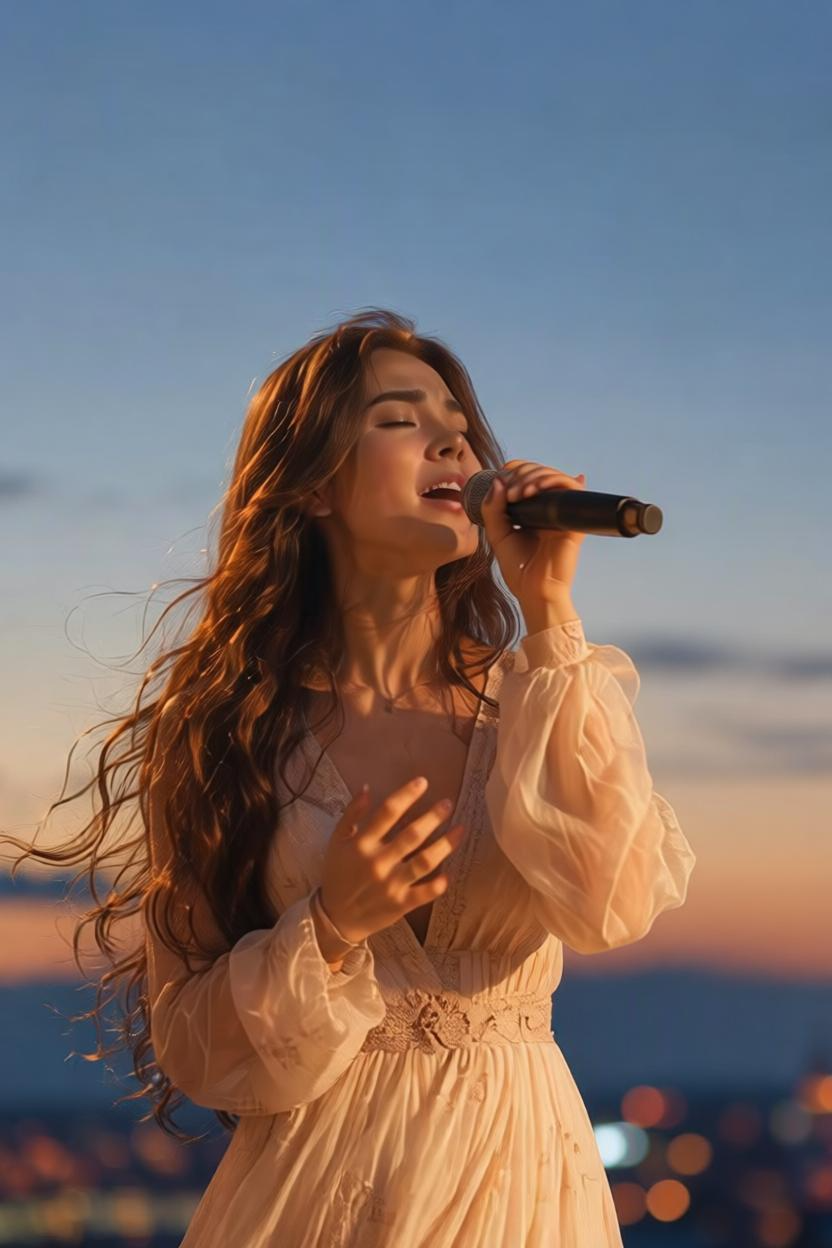
Describe both the camera path and the final framing. An orbit, a push-in and a change of focus are different instructions. Give the camera one clear destination before asking for another move.
Emotional cinematic medium shot, slow orbit around the singer. Keep the young woman, her light long-sleeve dress, the handheld microphone and the blue-to-orange gradient sky with distant city lights unchanged. She sings the lyrics with expressive, accurate singing lip-sync, brows lifting on high notes, chest breathing, subtle head tilts and closed-then-opening eyes conveying emotion. Long hair and dress flow in the wind. Golden-to-blue dusk lighting on her face, cinematic concert color grade, shallow depth of field, subtle film grain. Negative prompt: robotic mouth, stiff neck, off-beat lip sync, changed appearance, camera jitter.
Input image and audio
Shape emotion and micro-expressions
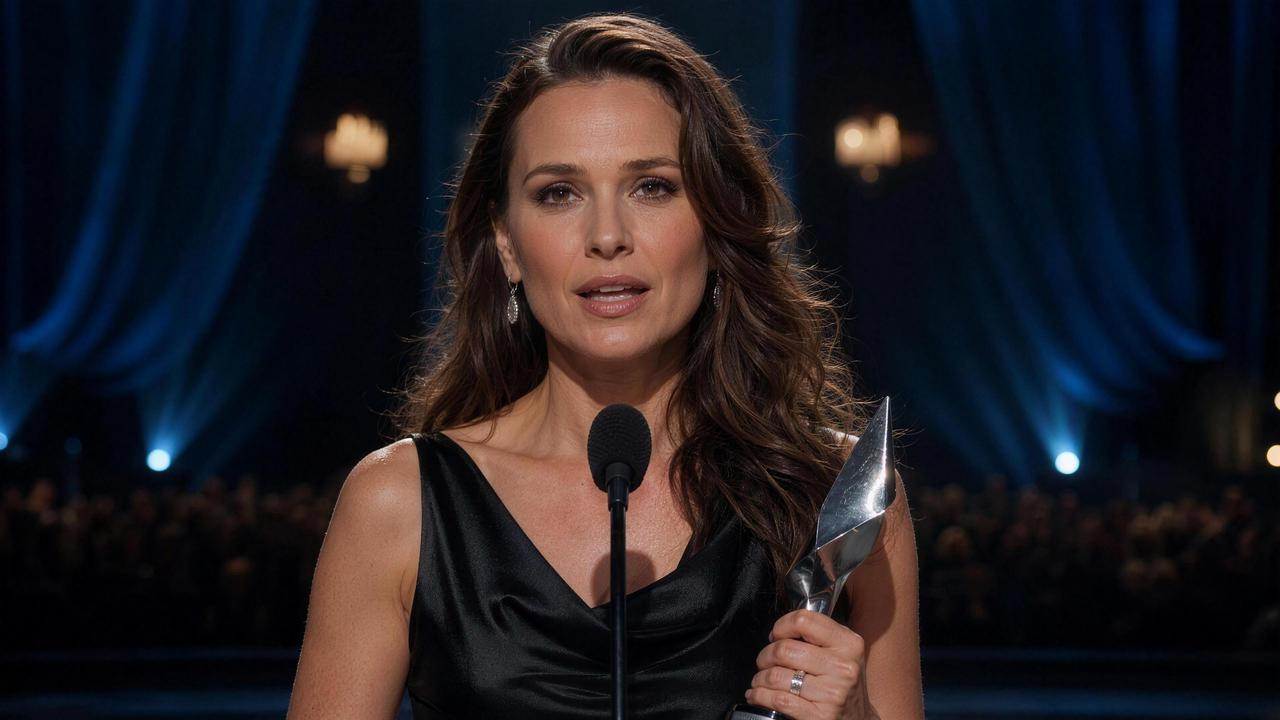
Connect an emotion to a visible change: a tightening brow, a hesitant glance or a restrained smile. Match the change to the voice instead of asking for conflicting emotions at the same moment.
Cinematic award ceremony medium close-up, slow gentle forward push-in. A mature, confident and poised actress in a black satin sleeveless evening gown stands at the stage microphone, holding a metallic trophy and delivering an acceptance speech perfectly synced to the uploaded audio. Warm stage light clearly lights her face; background features dark blue theater curtains, blurred audience and scattered camera flashes. She maintains elegant, steady posture with open shoulders. Her emotions are naturally expressive yet controlled, showing genuine surprise, gratitude and quiet determination. While speaking, she frequently looks sincerely toward the audience, and glances down at her trophy during emotional moments, fingers slightly tightening to convey cherish and honor. Her facial expressions shift gradually with the audio: calm, then surprised, grateful and confident. Bright eyes, subtle genuine smile, slightly moist eyes and gentle lip tremors with steady, quickened breathing. Natural soft head movements, organic gaze switching between audience and trophy. No stiff, mechanical or exaggerated stage acting. All microexpressions, body tension and subtle motions follow the audio emotion naturally. Photorealistic, Arri Alexa shot, anamorphic lens, shallow depth of field, realistic skin texture, professional stage lighting, subtle film grain.
Input image and audio
Introduce a visual effect
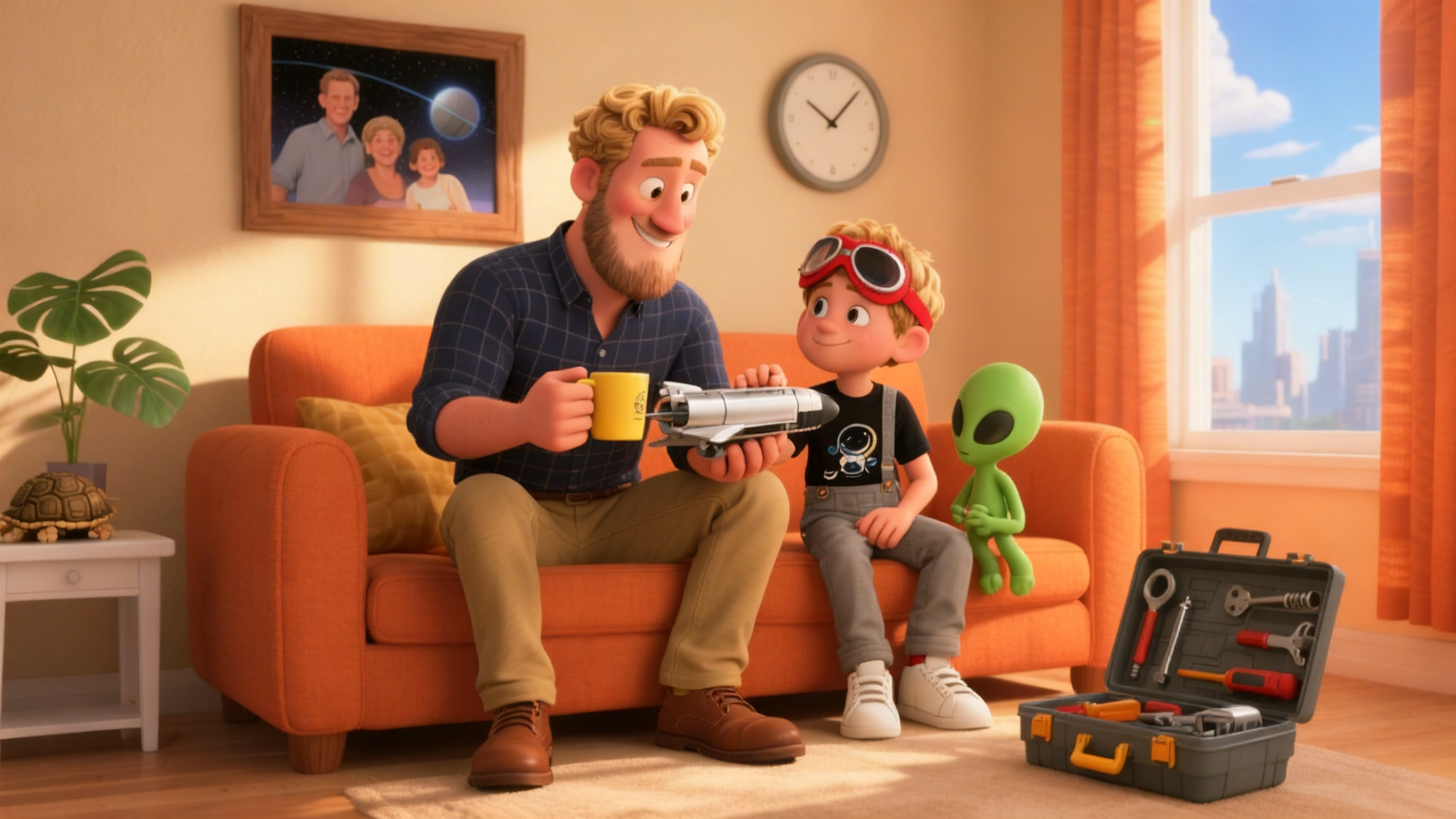
Describe when the new element appears, what it does and what remains after the effect. The reference image establishes the scene; the prompt introduces the event.
The father and son looked at the camera in shock, and the son spoke. Then the camera began to slowly zoom in. Distorted ripples appeared in the air. The father and son were sucked into the depths of the picture like dust and vanished instantly. The camera froze, leaving only the remote control and the phone on the empty sofa.
Input image and audio
Shift focus between characters
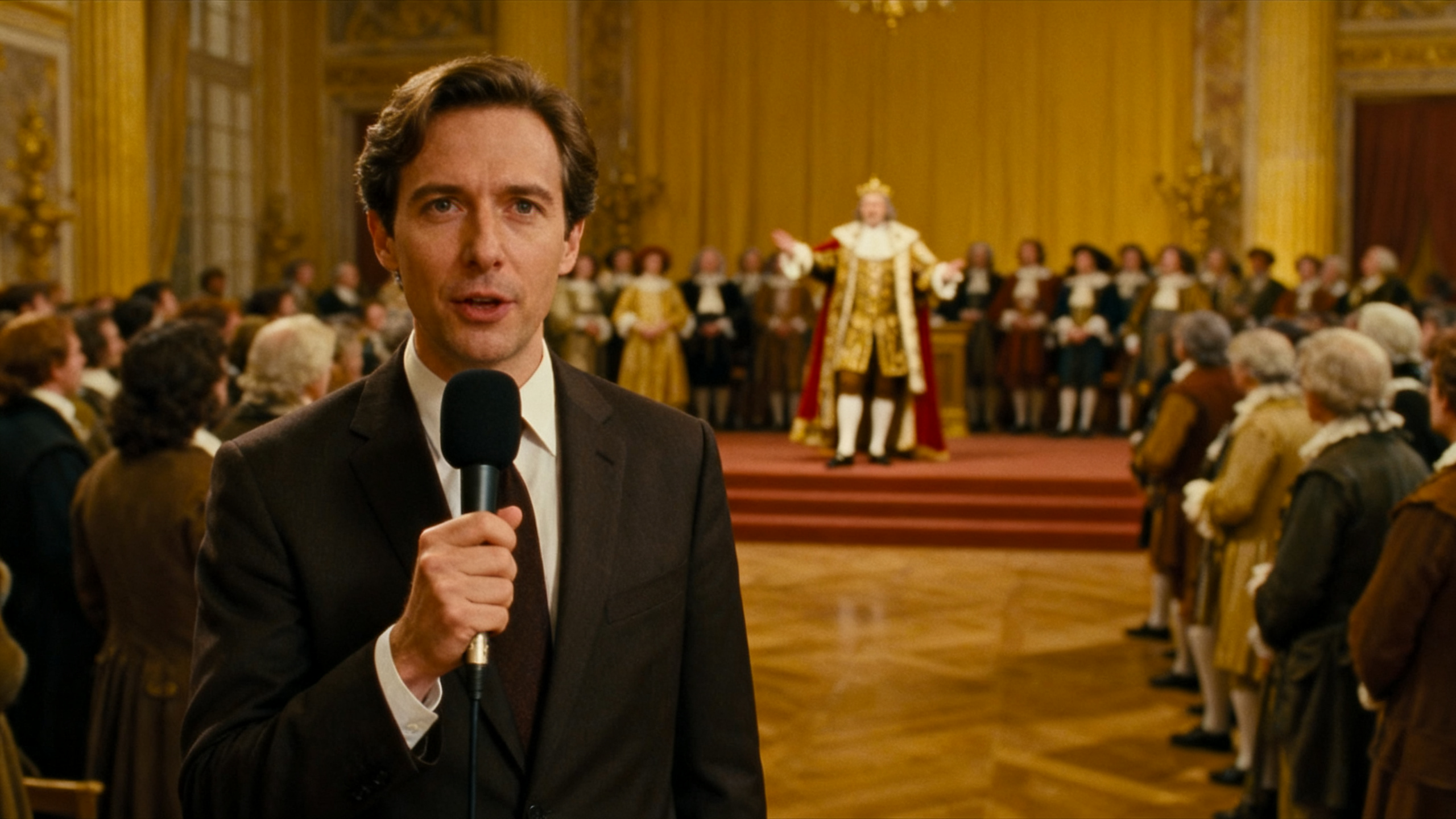
Name the foreground speaker and the background subject separately. State which subject becomes sharp and when attention returns to the speaker. Keep the sequence easy to follow.
The reporter is reporting to the camera. Meanwhile, the king behind suddenly collapses. The camera focuses on the collapsed king behind the reporter. The reporter turns around incredibly quickly and speaks while looking behind.
Input image and audio
Animate the environment
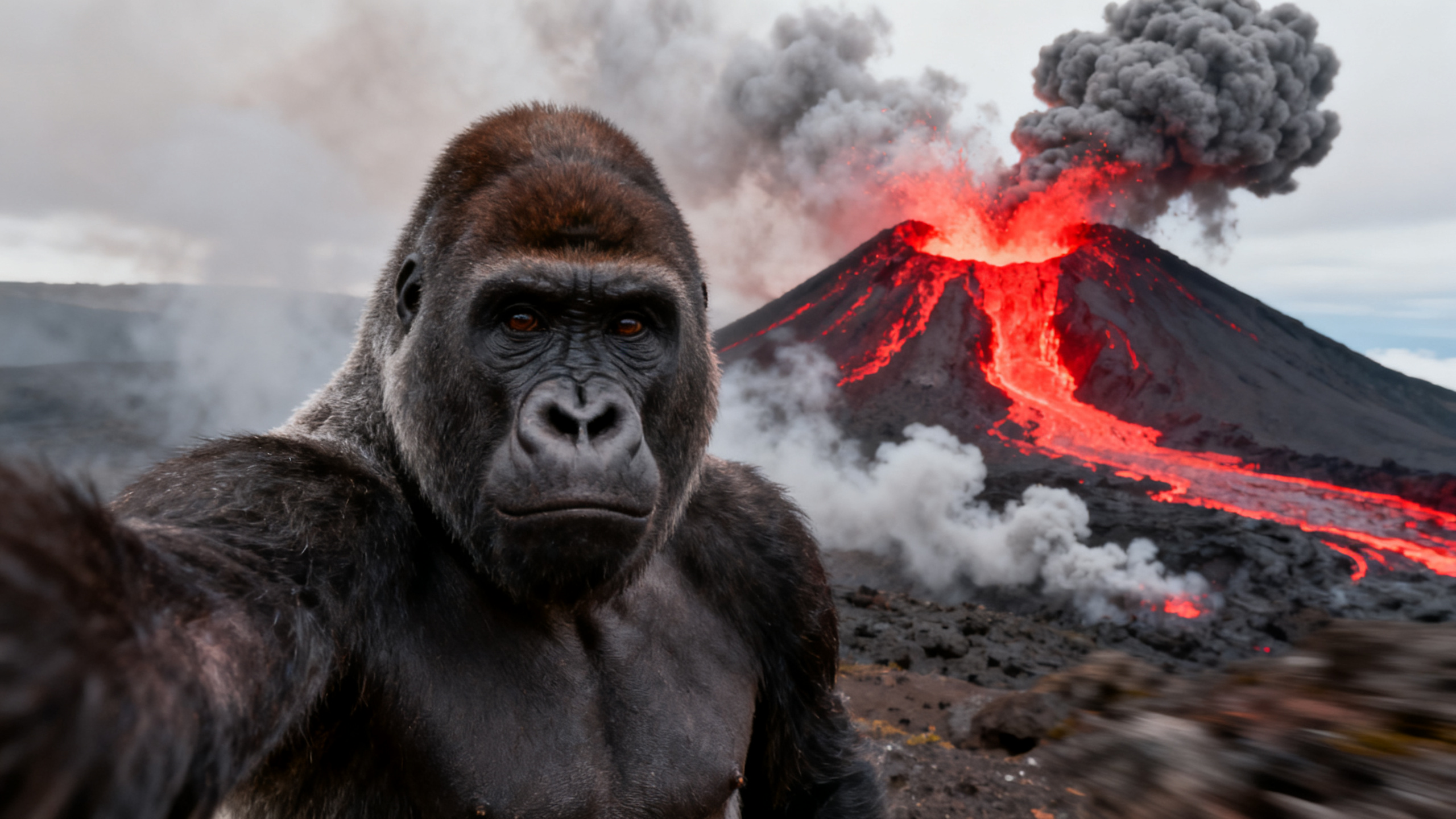
Give the surroundings a specific action while keeping the main performance clear. Wind, moving foliage, lighting changes and distant events can add life without requiring constant camera motion.
The orangutan stands still, raises its right arm to maintain a selfie pose, and talks while looking at the camera. The volcanic lava behind it gradually turns blue.
Input image and audio
How to get more reliable results
A more detailed prompt is not always a better prompt. Start with a clear image, intelligible audio and one main performance idea. Add complexity after the basic delivery works.
- Keep the face readable. A very distant face may produce weak or missing mouth movement. Use framing that gives facial detail enough space.
- Start with a short test. Start with a clip of 15 seconds or less to assess structural stability before trying a longer sequence. This is a quality consideration, not the Studio’s maximum upload duration.
- Avoid repeated exits and re-entries. A character returning after time out of frame may look different. Favor camera paths that keep the subject visible.
- Use manageable poses. Extreme angles and body positions can make a stable performance harder to achieve.
- Try a simpler instruction. Remove conflicting actions or compare against a run without a prompt when the direction is not working.
- Change one variable at a time. Keep the image and audio fixed while revising a gesture, camera move or emotion. Generation varies, so compare more than one result when the shot matters.
| Problem | First adjustment to try |
|---|---|
| The character barely speaks | Use a closer reference and explicitly describe the character speaking or singing. |
| The camera ignores the direction | Name one movement, its speed and the final framing. |
| Actions happen in the wrong order | Shorten the sequence and use first / then / after speaking. |
| Identity drifts during a long shot | Keep the subject visible and test a shorter audio segment. |
Use your prompt in OmniHumanAI Studio
You can use this workflow directly on our platform. Open the OmniHuman 2.0 Studio, prepare the inputs and add the direction you want the character to follow.
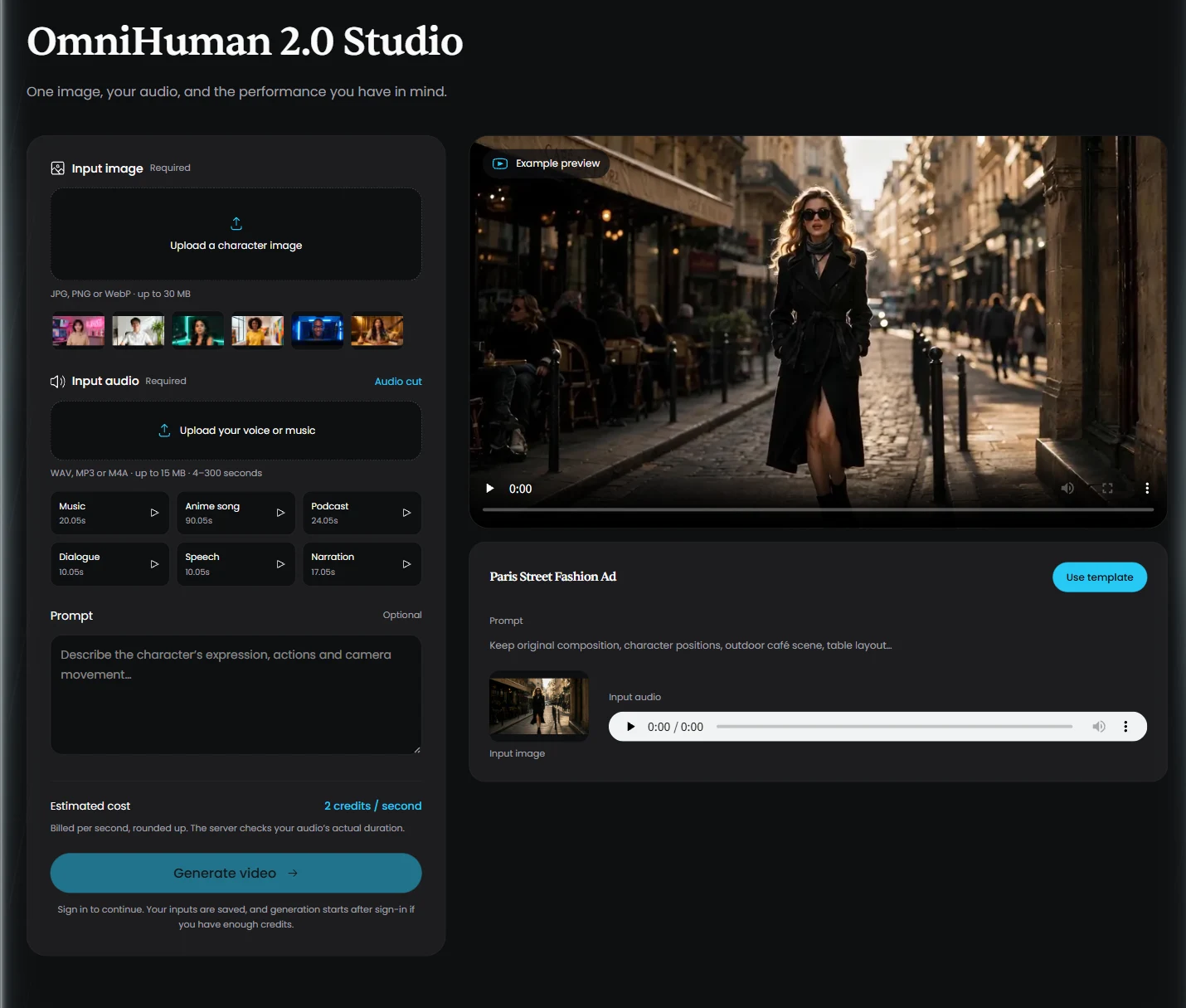
- Choose a reference image. Upload a JPG, PNG or WebP file up to 30 MB, or choose one of the default avatars. Start with a sharp face and a composition that leaves room for the intended motion.
- Add your voice or music. Upload WAV, MP3 or M4A audio up to 15 MB, lasting 4–300 seconds. Use Audio cut if you want to prepare a shorter test segment.
- Enter an optional prompt. Describe the camera, delivery and actions in the Prompt field. You can also select Use template to load the example’s inputs and prompt, then review them.
- Review the estimated cost. The Studio estimates 2 credits per second, rounding the audio duration up. The server checks the actual duration. See our plans for current credit packages.
- Generate and review. Sign in and select Generate video when your inputs are ready. Watch the finished result for mouth timing, identity, gestures and camera behavior, then download it or revise the inputs for another run.
The example player is a preview, not your generated result. Loading a template fills the editor; generation begins when you submit the task.
Further reading
For the differences between versions, read OmniHuman 2.0 vs OmniHuman 1.5. For more complete performances, explore the OmniHuman 2.0 video examples.
Frequently asked questions
Do I need a prompt to use OmniHuman 2.0?
No. The Studio requires an image and audio; the prompt is optional. Use a prompt when you want to direct a particular gesture, expression, camera move or background event.
Should I paste my dialogue into the prompt?
Supply the dialogue as audio. Use the prompt to explain how the character performs it, including whether they speak or sing and what they do before, during or after the line.
Can I tell one person in a group image to speak?
OmniHuman supports specifying the speaker while other people react naturally. Identify the speaker clearly by position or a distinguishing feature. Our Studio accepts one image and one audio track; it does not expose separate audio-track assignment for each character.
Does the 15-second recommendation limit generation length?
No. Our Studio accepts 4–300 seconds of audio. The 15-second recommendation concerns structural stability, so a short test is useful before committing to a longer shot.
Can I use a prompt with an animal or illustrated avatar?
The examples include non-human and stylized subjects. Keep the intended speaking or singing action clear, and choose a reference with recognizable facial features.
What should I check if my upload is rejected?
Check the file format, size and audio duration shown in the Studio. Use images and audio you are authorized to use. If a valid file still fails, review the displayed error before trying again or contacting support.
Give your next performance a clear direction.
Start with one image and your audio. Add a focused prompt, then review the result.
Open OmniHuman 2.0 Studio